UniFi Controller Java 8 Shortcut Error and Device Discovery Problem Solutions
Learn how to resolve common UniFi Controller issues related to Java 8 compatibility, application shortcut errors, device discovery failures, firewall restrictions, Hotspot/Captive Portal conflicts, and the software getting stuck at the “Starting” stage on Windows systems.
 Umut Can Yıldız

⸻
##Application Shortcut Error
##If You Still Continue to Receive the Shortcut Error After These Steps
- Right-click the application shortcut and select Properties,
- Change the Java location in the Target section as recommended below.
##The Original Target Section Looks Like This
C:\Windows\system32\javaw.exe -jar “C:\Users\kullanıcıadı\Ubiquiti UniFi\lib\ace.jar”
Change the Target Section to This
javaw.exe -jar “%USERPROFILE%\Ubiquiti UniFi\lib\ace.jar” ui
##If the Above Does Not Work, Try the Alternative Below
“%PROGRAMDATA%\Oracle\Java\javapath\javaw.exe” -jar “%USERPROFILE%\Ubiquiti UniFi\lib\ace.jar” ui
##Error Where Devices Cannot Be Found in the Software
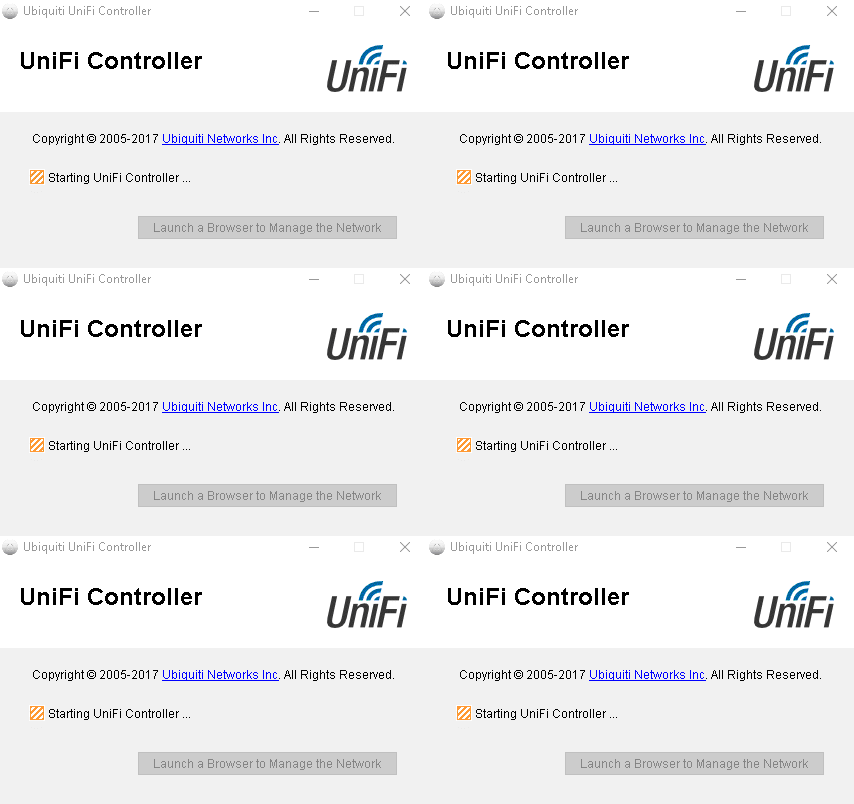
##Software Continuously Stuck at the “Starting” Stage
Visit the store to browse and purchase wifiAnten products.
Enter storeQuestions
No questions yet. Be the first to ask.
Written by
Umut Can Yıldız
Sistem destek uzmanı
Related Posts
MikroTik RouterOS v7: IPTV, NexT Kanky, Turkcell TV+ ve Tivibu Donma Sorunu Çözüm Rehberi
Ağ altyapınızda Next Kanky gibi internet tabanlı IPTV alıcılarında veya Turkcell TV+, Türk Telekom Tivibu gibi servis sağlayıcı (ISP) Set-Top Box cihazlarında yaşanan donma, takılma (buffering) ve yavaş kanal geçişi sorunlarını MikroTik RouterOS v7 ile nasıl çözeceğinizi adım adım inceliyoruz. Bu rehberde FastTrack muafiyeti, QoS, IGMP Snooping ve VLAN tabanlı IGMP Proxy yapılandırmalarının teknik detayları yer almaktadır.

UniFi Güncelleme Sorunu – UniFi cihazları için manuel Güncelleme adımları

UBNT airMAX GPS Sync Sık Sorulan Sorular
Ubiquiti Networks, airMAX AC platformu için yeni yayınladığı airOS 8 yazılım güncellemesi ile, noktadan çoklu noktaya bağlantılarda yaşanan ortak alan girişimi, paket iletim zamanlama hataları, ve yüksek ping süreleri gibi sorunları GPS Sync ve airPRISM teknolojisi ile ortadan kaldırarak, benzer teknolojileri kullanan rakiplerine kıyasla %90' a varan verimlilik sunmaktadır.Bu yazımızda, GPS Sync özelliği hakkında sıkça sorulan sorulardan bazılarının yanıtlarını bulacaksınız. İlgilendiğiniz soruların cevabına, yan tarafta yer alan yazı içeriği tablosundaki ilgilendiğiniz konu başlığına tıklayarak ulaşabilirsiniz.
Comments
No comments yet. Be the first to comment.
Leave a comment
Sign in with Google first to post a comment.