My First MikroTik Configuration: Basic Setup Guide for Beginners
Meeting your MikroTik router for the first time? Don't be intimidated! In this guide, learn step-by-step how to configure your first MikroTik settings, from connecting via WinBox to setting up basic network parameters and getting internet access.
 Umut Can Yıldız
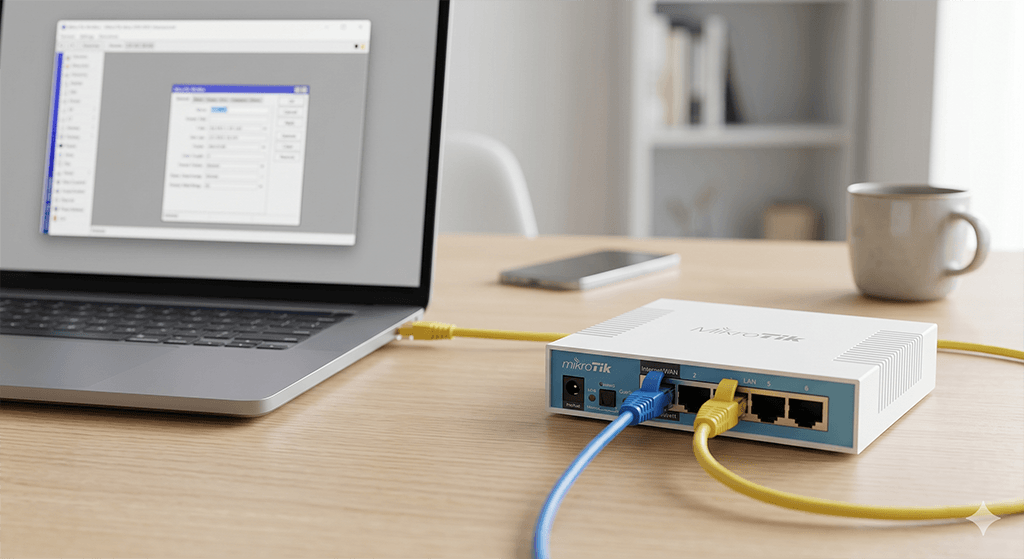
MikroTik devices are one of the shining stars of the networking world, offering incredible flexibility and advanced features. However, for someone encountering the RouterOS interface for the first time, the screen can look a bit complicated. Don’t worry! In this post, we will look step-by-step at how to configure a fresh-out-of-the-box MikroTik router at a basic level and provide internet access to your devices.
1. Connecting to the Device with WinBox
The easiest way to manage a MikroTik is by using a tool called WinBox.
- Download WinBox from MikroTik’s official website.
- Connect your computer to the router’s ether2 (or LAN) port using an ethernet cable.
- Open WinBox and click on the “Neighbors” tab.
- You will see the MAC address of your device here. Click on the MAC address.
- The default username is
admin, and the password field should be left blank (for some newer models, the password might be printed on the sticker under the device). - Click the Connect button to log into the interface.
2. Setting a Password for Security
The very first thing you should do upon logging in is to set an admin password.
- Follow the path System > Password from the left menu.
- Leave the old password blank and type in a new, strong password.
3. Setting Up the Internet Connection (WAN)
Let’s assume you plugged the internet cable coming from your modem into the router’s ether1 port. To receive internet, we need to set up a DHCP Client.
- Click on IP > DHCP Client from the menu.
- Add a new rule by clicking the
+icon. - Select ether1 as the Interface and click OK.
- If you see the word “bound” and an IP address in the Status column, it means your MikroTik is connected to the internet!
4. Setting the Local Area Network (LAN) IP Address
Now we need to assign an IP to the router for our internal network.
- Go to the IP > Addresses menu.
- Click the
+icon. - Type
192.168.88.1/24(or any block you prefer) in the Address field. - Select ether2 (or the Bridge where you combined all LAN ports) as the Interface and click OK.
5. Distributing IPs to Devices (DHCP Server)
To allow your computers and phones to get automatic IPs, we must activate the DHCP server.
- Open the IP > DHCP Server menu.
- Click the “DHCP Setup” button.
- Select ether2 as the interface and keep clicking Next to confirm the default settings.
6. Allowing Internet Access: NAT (Masquerade)
For the devices in the internal network (192.168.88.x) to access the internet (WAN), we must write a NAT (Network Address Translation) rule.
- Go to the IP > Firewall menu and switch to the NAT tab.
- Click the
+icon. - In the General tab, set
Chain: srcnatandOut. Interface: ether1. - Switch to the Action tab and choose
Action: masquerade. - Click OK to save.
Congratulations! You have successfully completed your first MikroTik configuration. You can now connect your computer to the network, enjoy the internet, and start exploring the depths of RouterOS.
Visit the store to browse and purchase wifiAnten products.
Enter store
Written by
Umut Can Yıldız
Sistem destek uzmanı
Table of Contents
Related Posts
MikroTik RouterOS v7: IPTV, NexT Kanky, Turkcell TV+ ve Tivibu Donma Sorunu Çözüm Rehberi
Ağ altyapınızda Next Kanky gibi internet tabanlı IPTV alıcılarında veya Turkcell TV+, Türk Telekom Tivibu gibi servis sağlayıcı (ISP) Set-Top Box cihazlarında yaşanan donma, takılma (buffering) ve yavaş kanal geçişi sorunlarını MikroTik RouterOS v7 ile nasıl çözeceğinizi adım adım inceliyoruz. Bu rehberde FastTrack muafiyeti, QoS, IGMP Snooping ve VLAN tabanlı IGMP Proxy yapılandırmalarının teknik detayları yer almaktadır.
UniFi Güncelleme Sorunu – UniFi cihazları için manuel Güncelleme adımları
UniFi Controller Java 8 Shortcut Error and Device Discovery Problem Solutions
Learn how to resolve common UniFi Controller issues related to Java 8 compatibility, application shortcut errors, device discovery failures, firewall restrictions, Hotspot/Captive Portal conflicts, and the software getting stuck at the “Starting” stage on Windows systems.